

How to Automatically Back Up Your Computer

Why Automatic Backups Matter
After more than 25 years working in IT, I can tell you that most people do not lose their files because technology failed them. They lose their files because they never created a reliable backup in the first place.
Many people intend to copy their files to an external drive or upload them somewhere safe, but life gets busy and the backup never happens. Then something unexpected occurs. A hard drive fails. A laptop is stolen. A ransomware attack locks files. When those events happen, the question becomes painfully clear.
Was there a backup?
Automatic backup systems exist to remove this risk by protecting your files without requiring constant manual effort.
What Automatic Backup Means
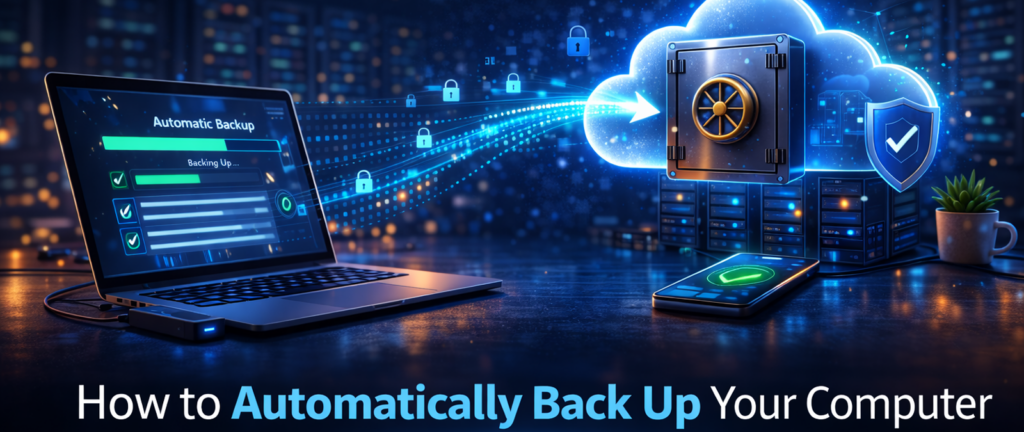
Automatic backup software continuously monitors your computer and copies important files to a secure storage location.
Once the system is installed and configured, the backup process runs quietly in the background. As files are created or modified, new copies are uploaded automatically.
This ensures that your most recent work is protected even if something goes wrong with your computer. For many users, the best backup system is one that they rarely have to think about.

Four Steps to Consider
You should consider these four steps when coming up with an automatic backup strategy that will best protect your data:
Step 1: Choose a Backup Method
There are two primary ways to automatically back up a computer.
Cloud Backup Services
Cloud backup services store encrypted copies of your files on secure remote servers. These services run automatically and protect data even if your computer is lost, stolen, or damaged.
Popular cloud backup services include platforms such as Carbonite, iDrive, Backblaze, Acronis, and CrashPlan. These services install software that automatically scans and protects your files.
Local Backup Systems
Local backup systems store copies of your files on devices such as external hard drives or network storage systems. Operating systems like Windows and macOS include built in tools that can automatically copy files to a local backup device.
While local backups can restore files quickly, they do not protect data if both the computer and the backup device are damaged or stolen.
Step 2: Install Backup Software
Most automatic backup services require installing a small application on your computer. Once installed, the software scans your system and identifies files that should be protected. In many cases, common folders such as documents, photos, and desktop files are automatically selected.
After the initial setup, the system begins copying data to the backup location. The first backup may take some time depending on the amount of data being uploaded. After that, the system only transfers files that have changed.
Step 3: Verify That Backups Are Running
One of the most important steps people forget is verifying that backups are actually working. After installing backup software, it is a good idea to occasionally check the system dashboard to confirm that files are being protected successfully.
Most backup platforms provide simple status reports showing when the last backup occurred and how much data has been stored. Taking a moment to confirm that backups are active can prevent unpleasant surprises later.
Step 4: Test File Recovery
A backup system is only useful if files can actually be restored. Occasionally testing file recovery ensures that the system is working properly. Most backup services allow users to restore individual files through a web portal or software interface. Testing the recovery process once or twice a year can provide confidence that your data is truly protected.
Why Businesses Rely on Automatic Backup
Businesses generate large amounts of data every day. Financial records, customer information, project files, and operational systems all depend on reliable storage.
Manually backing up this information would require constant effort and attention. Automatic backup systems allow organizations to protect data continuously without interrupting daily operations.
For many businesses, automated backups are considered a basic requirement for responsible IT management.
The MyFriend Perspective

At MyFriend, we believe technology should make life easier, not more complicated. Automatic backup systems are one of the simplest ways to protect valuable information. Once installed, they quietly protect files in the background and ensure that data can be restored if something goes wrong.
For individuals and businesses alike, automatic backup provides peace of mind that important files are safe.
Final Thoughts

Data loss can happen suddenly and without warning. Hard drive failures, accidental deletions, and cyber threats are all common causes of lost files.
Automatic backup systems eliminate much of that risk by continuously protecting files without requiring manual effort. Setting up an automatic backup today can prevent the loss of valuable data tomorrow.
That is advice from MyFriend on the web.
Special Note
This article is part of a larger topic you may wish to explore in our Complete Guide to Cloud Backup Software for Small Business.