

How to Access Your Office Computer From Home
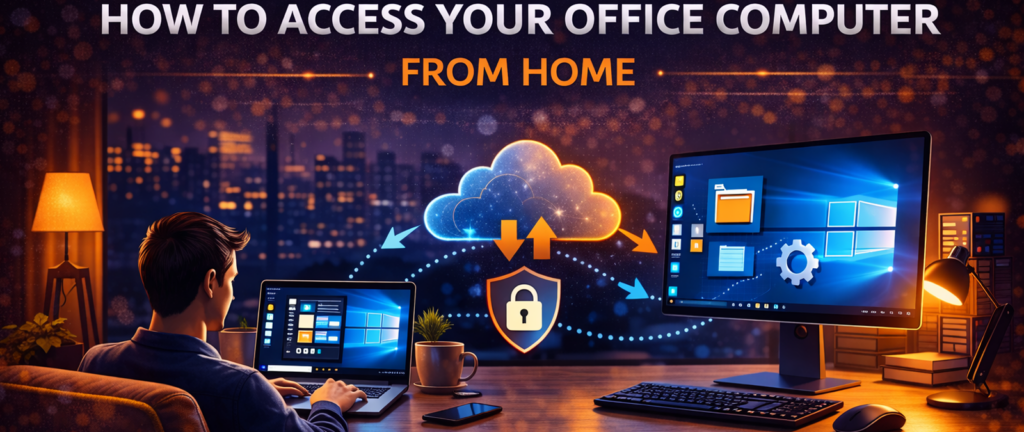

Remote work is no longer just a temporary solution—it has become a permanent part of how many businesses operate. Whether you’re working from home, traveling, or supporting clients remotely, having access to your office computer can make the difference between staying productive and falling behind.
As an IT professional with more than 25 years of experience helping small businesses improve their technology and productivity, one of the most common questions I hear is:
“How can I access my office computer from home safely?”
The good news is that modern remote access tools make this easier than ever. With the right setup, you can securely control your office computer from almost anywhere as if you were sitting at your desk.
In this guide, we’ll explain how remote access works, what tools are available, and how to set it up safely.
What Does It Mean to Access Your Office Computer Remotely?
Remote access allows you to connect to and control another computer over the internet. When you connect remotely, your screen displays the desktop of the office computer. Your keyboard and mouse inputs are transmitted to that machine, allowing you to open applications, access files, and run software exactly as if you were physically there.
This is particularly useful for:
• employees working from home
• business owners traveling frequently
• IT professionals managing systems remotely
• consultants who support multiple clients
Instead of copying files back and forth or trying to recreate your office environment on another machine, remote access lets you use the actual office computer itself.
Common Ways to Access an Office Computer Remotely
There are several technologies that allow remote access, but the most common solution for small businesses is remote desktop software.
Popular tools include:
• Splashtop
• TeamViewer
• Chrome Remote Desktop
Each of these platforms allows you to install software on your office computer and then connect to it securely from another device. Some tools are designed for personal use, while others include advanced features for businesses and IT professionals.
Basic Requirements for Remote Access
Before setting up remote access, a few basic conditions need to be in place.
The Office Computer Must Be Turned On
Your office computer needs to remain powered on and connected to the internet. If the computer is shut down, remote access will not work unless additional technologies such as Wake-on-LAN are configured. Many businesses leave office workstations powered on for this reason.
A Reliable Internet Connection
Both the office computer and the remote device need stable internet connections. Faster connections generally provide smoother remote sessions.
Remote Access Software Installed
The office computer must have a remote access program installed so it can accept incoming connections.
Once the software is installed and configured, you can connect from your home computer, laptop, tablet, or even a smartphone.
Step-by-Step: How to Access Your Office Computer From Home
While each remote access platform has its own setup process, the overall steps are very similar.
Step 1: Install Remote Access Software on the Office Computer
The first step is installing remote desktop software on the computer you want to access. For example, if you’re using Splashtop, you would install the Splashtop streamer application on the office workstation. This software allows the computer to accept secure remote connections.
Step 2: Install the Client App on Your Home Device
Next, install the client application on the device you plan to use at home.
This might be:
• your personal laptop
• a home desktop computer
• a tablet
• a smartphone
Once installed, you’ll sign in with the same account used to configure the office computer.
Step 3: Authenticate and Connect
After logging in, the client application will show a list of available computers associated with your account. Simply select the office computer you want to access and start the connection. Within seconds, you should see your office desktop appear on your screen.
Step 4: Use Your Office Computer Normally
Once connected, you can interact with your office computer exactly as you would in person.
You can:
• open files
• run business software
• check email
• manage projects
• perform administrative tasks
The experience is designed to feel as natural as possible.
Advantages of Remote Desktop Access
Remote desktop software has become incredibly popular because it solves many common workplace challenges.
Maintain Access to Office Software
Many businesses rely on software that is installed on office machines. Remote access allows employees to continue using those programs from home.
Secure File Access
Instead of copying sensitive files to personal devices, users can access them directly on the office system. This reduces the risk of data being stored in multiple locations.
Business Continuity
Remote access solutions played a crucial role during the COVID shutdowns, allowing businesses to continue operating even when employees could not physically come into the office.
Many organizations continue to rely on these tools today.

Splashtop has become one of the most widely used remote access tools among small businesses and IT consultants.
Choosing the Right Remote Access Tool
Not all remote desktop solutions are the same. The best choice depends on how often you need remote access and what features are important.
Personal Use vs Business Use
Free tools such as Chrome Remote Desktop are often sufficient for occasional personal use. However, businesses typically require additional features such as:
• stronger security controls
• remote printing
• file transfer capabilities
• multi-monitor support
Platforms like Splashtop are designed specifically for these professional environments.
Performance and Reliability
When working remotely for extended periods, connection performance becomes important. Professional remote access tools are optimized to provide smooth screen updates and responsive control even on slower internet connections. This makes them more practical for daily work tasks.
Security Features
Security should always be a top priority when enabling remote access to business systems. Look for platforms that provide:
• encrypted connections
• two-factor authentication
• device authorization
• session logging
These features help ensure that only authorized users can access company computers.
Security Tips for Remote Access
While remote desktop software is generally secure when configured correctly, there are a few best practices every business should follow. Use strong passwords and avoid reusing credentials across multiple services. Enable multi-factor authentication whenever possible to add an additional layer of protection. It is also wise to restrict remote access permissions so that only employees who truly need it can connect to office machines. Finally, keep operating systems and remote access software updated to protect against known vulnerabilities.
Real-World Example: Remote Work for Small Businesses
Many of the small businesses I work with rely on remote desktop tools every day. For example, accounting staff may access specialized financial software installed on office workstations while working from home. Business owners traveling for meetings can log into their office computer to retrieve documents or run reports.
IT consultants frequently use remote access software to troubleshoot systems and provide support without needing to travel onsite. In each case, the goal is the same: maintain full access to critical systems regardless of physical location.
Final Thoughts

Accessing your office computer from home is no longer complicated. With modern remote desktop tools, businesses and individuals can securely connect to their work systems from almost anywhere.
By installing the right software, maintaining good security practices, and choosing a reliable remote access platform, you can recreate your office environment wherever you happen to be.
For professionals who depend on reliable remote connections, tools like Splashtop and other remote desktop platforms make it possible to stay productive without being tied to a physical office. We are so happy about it, we even made a little jingle about it. We hope signing up for the freedom of Splashtop will “set you free” as well.

Ready to let Splashtop set you free? You can easily do business while on the go or working from home
Click here!
View Current PricesSpecial Note
This article is part of a larger topic you may wish to explore in our Complete Guide to Remote Desktop Software for Small Business.